Adding the Network Hub to the App
Before You Start
- Ensure the Network Hub is powered on (12 Vdc connected, or CN-CNT connected to heat pump).
- Ensure all physical connections (CN-CNT, Modbus devices, Ethernet) are in place.
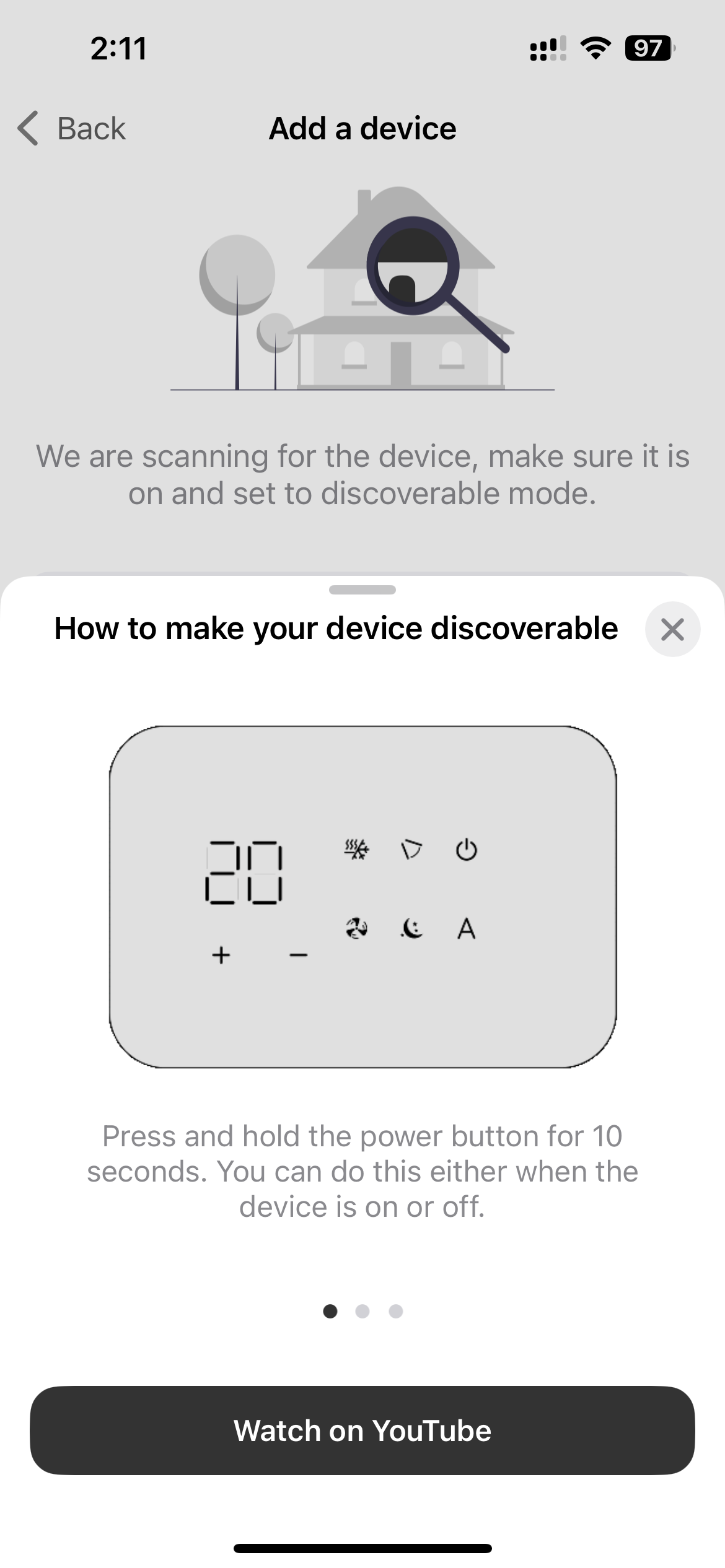
- The Network Hub enters discoverable mode automatically after power-on — the LED blinks blue.
- Enable Bluetooth on your phone. If connecting via Wi-Fi, your phone must be on the same Wi-Fi network you want to use.
Discover the Network Hub
- In the app, tap Add a device. You may see a help screen for other device types — skip it for this step.
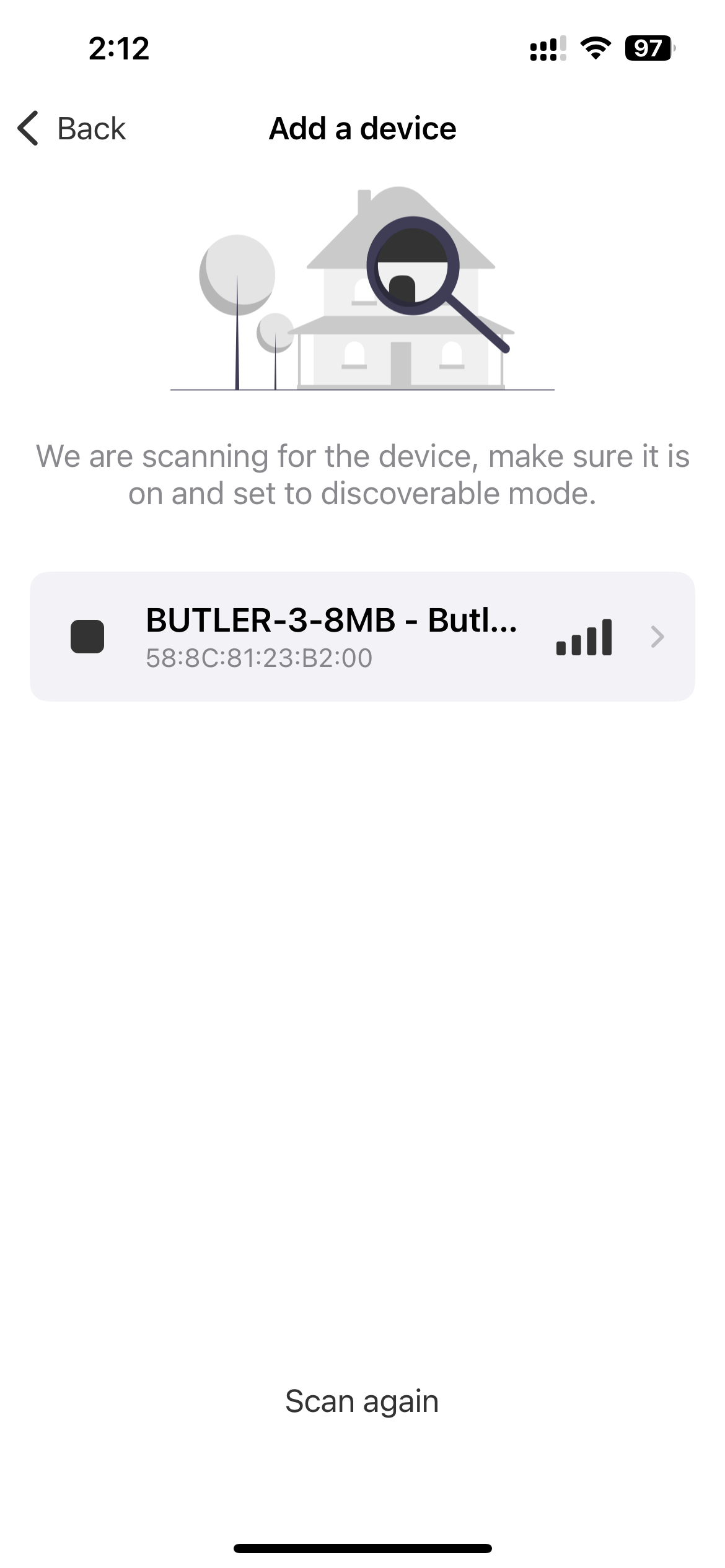
- The app scans for nearby Network Hubs via Bluetooth.
- Your device will appear in the list (e.g., “BUTLER-3-8MB”) with its MAC address.
- Tap the device to select it.
Assign a Name
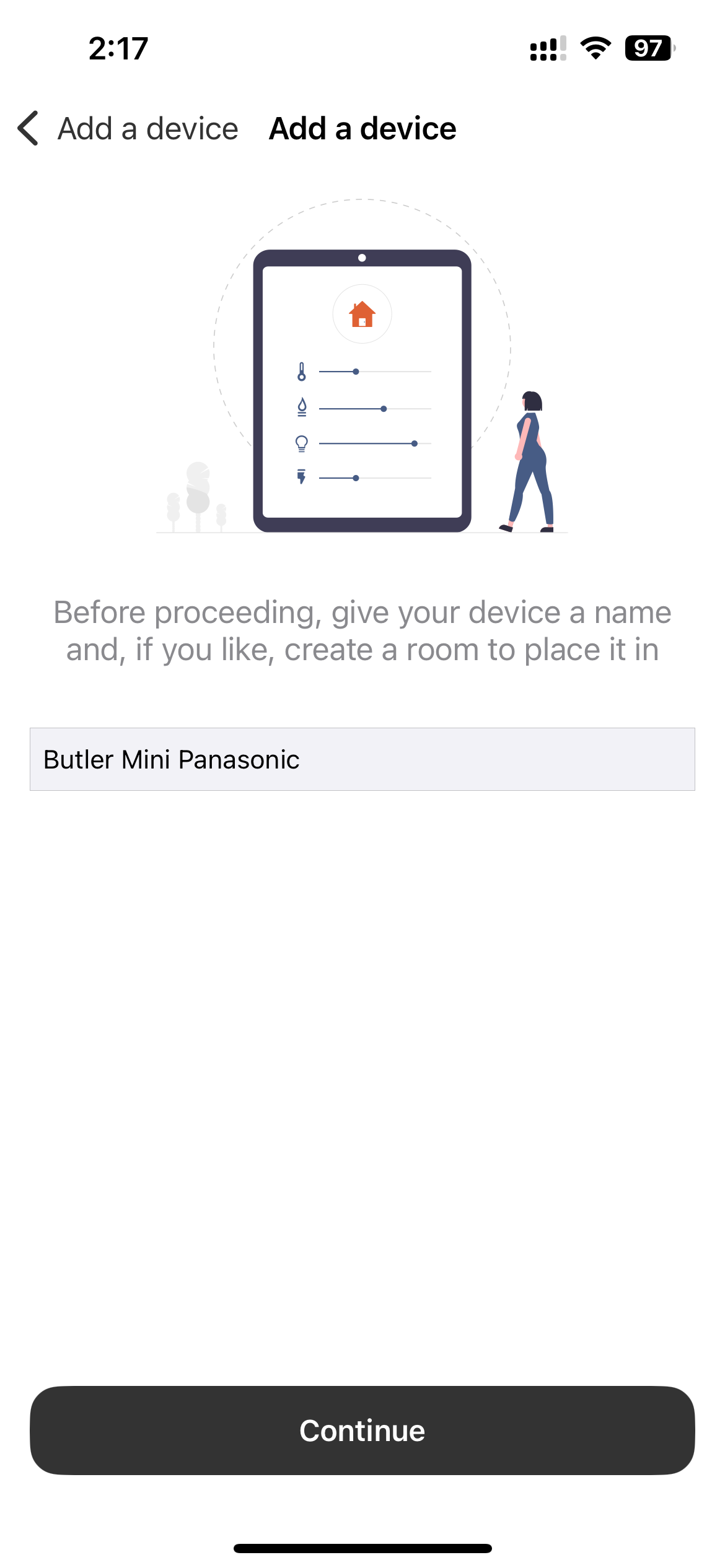
- Give the Network Hub a descriptive name.
- Optionally assign it to a room.
- Tap Continue.
Configure the Internet Connection
Choose between Wi-Fi or Ethernet for the Network Hub’s internet connection.
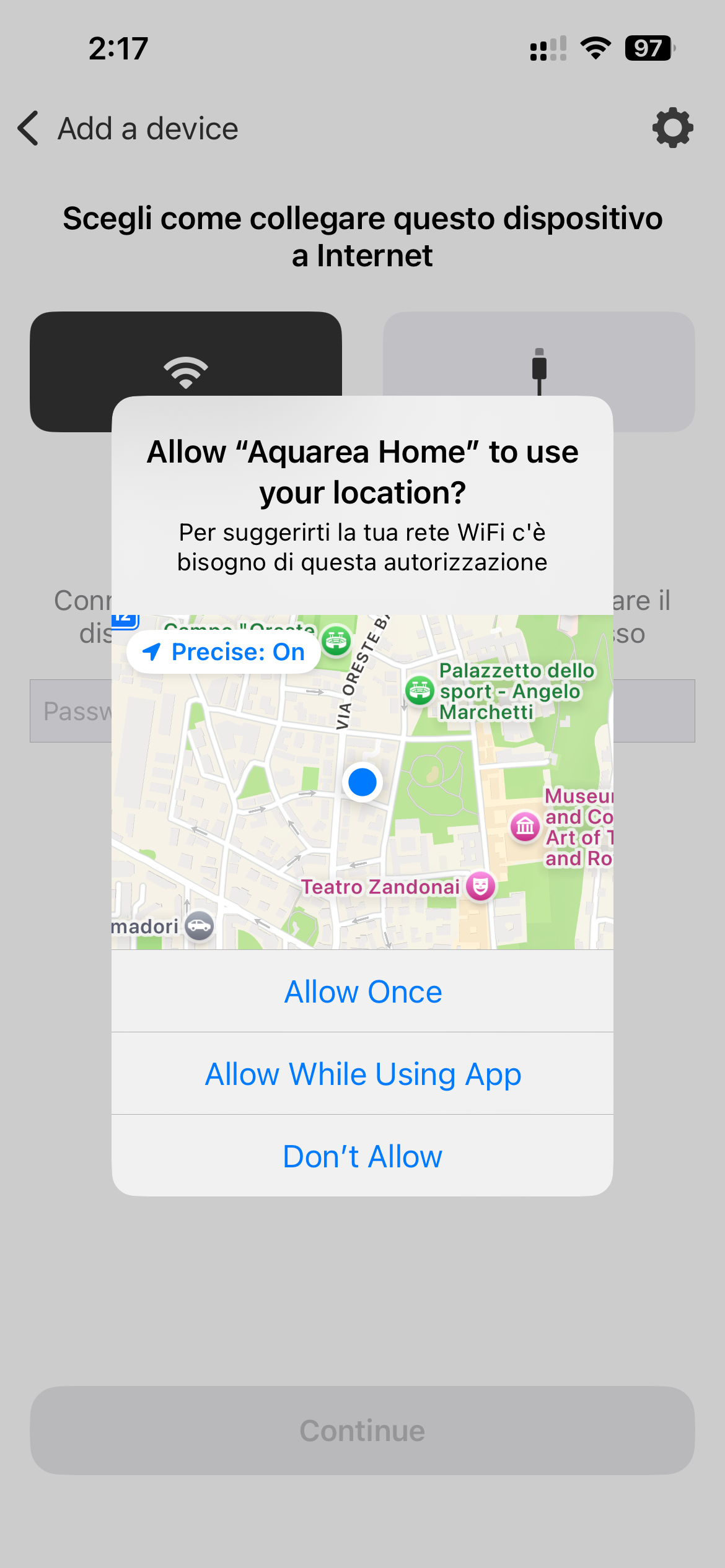
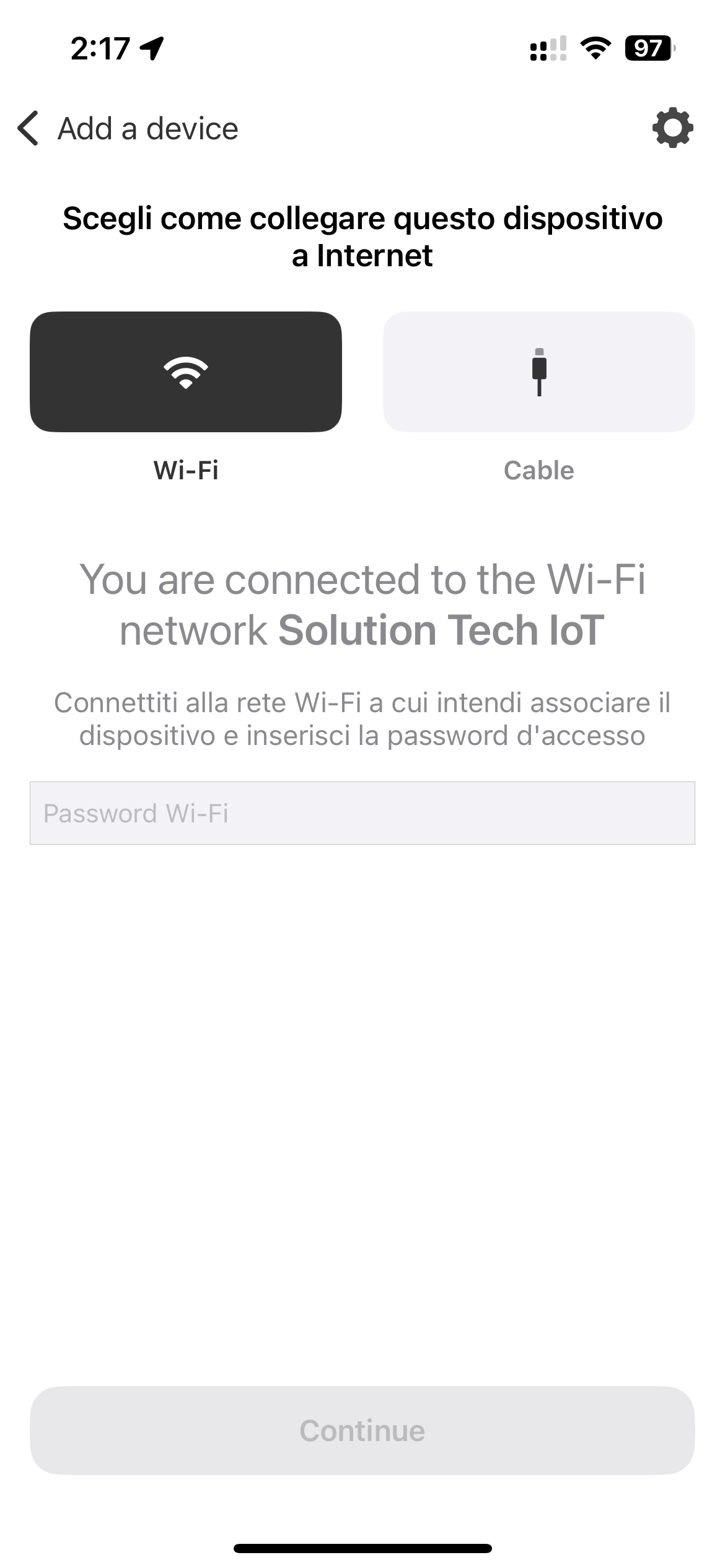
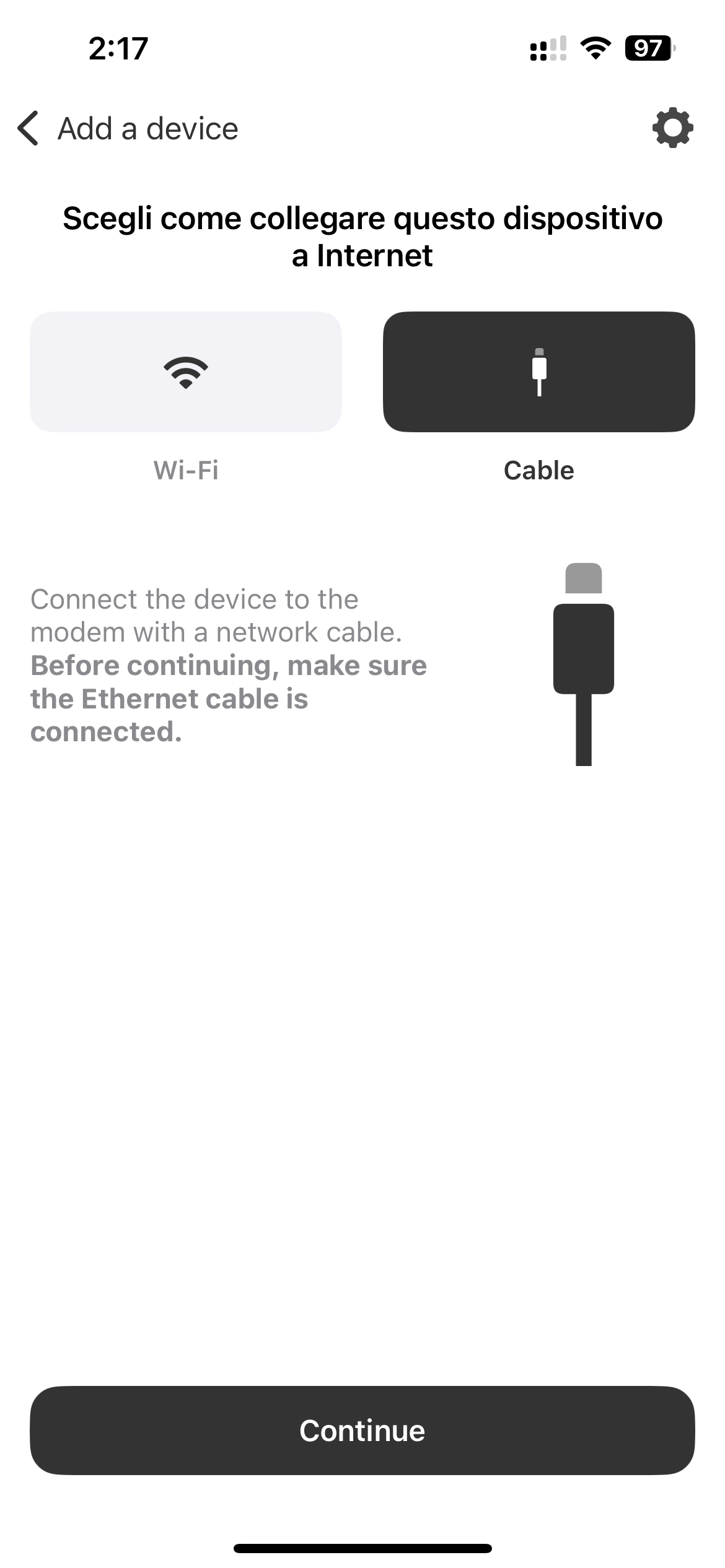
Ensure Wi-Fi, Bluetooth, and location services are all enabled on your phone during setup.
Option A: Wi-Fi
- Select Wi-Fi as the connection method.
- The app shows the Wi-Fi network your phone is currently connected to.
- Enter the Wi-Fi password and tap Continue.
Option B: Ethernet
- Select Cable as the connection method.
- Ensure the Ethernet cable is already connected to the Network Hub and your router.
- Tap Continue.
The IP address is assigned automatically via DHCP.