Calendars
Calendars let you automate device operation based on a weekly schedule. Each calendar contains time slots that apply presets to your devices at specific times of day.
Create a Calendar
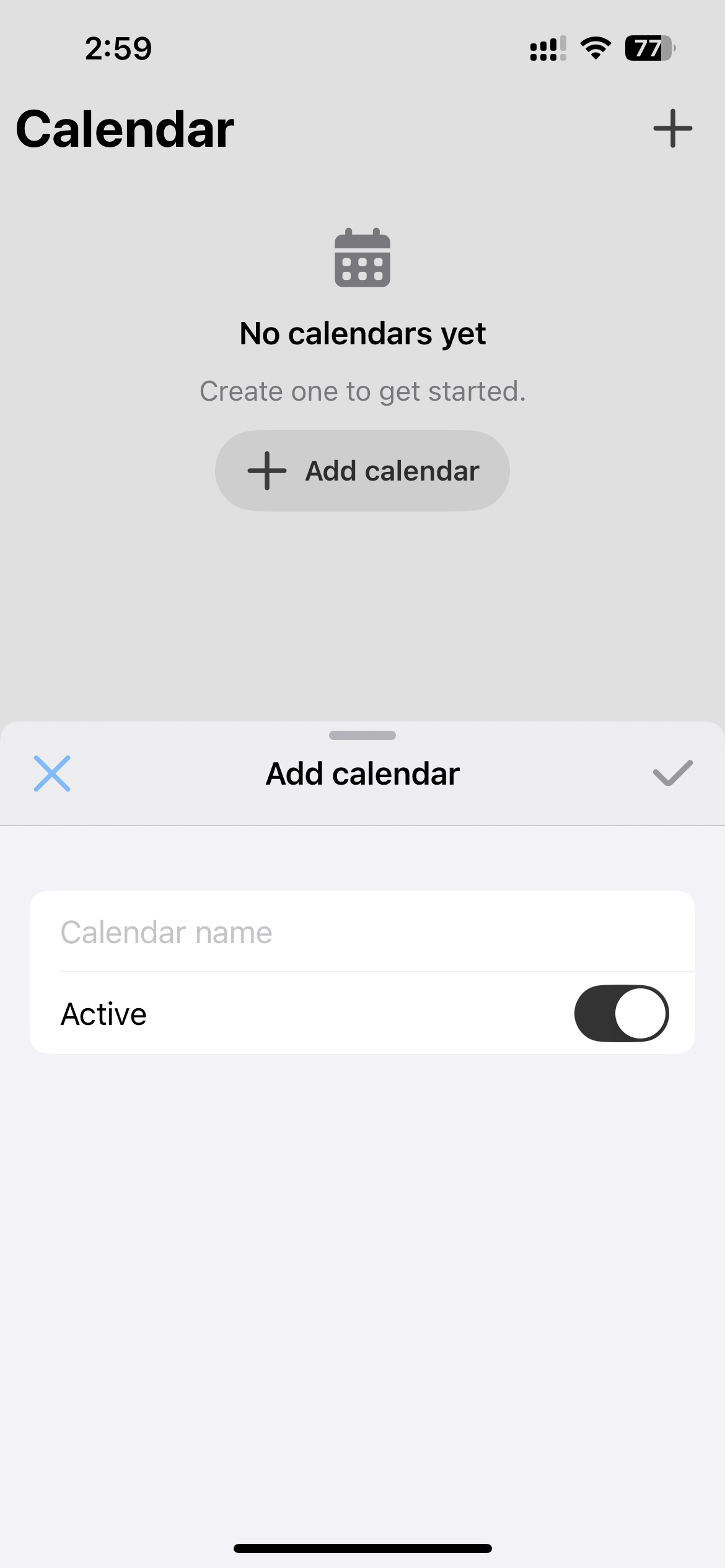
- Tap the Calendar icon in the bottom navigation bar.
- Tap + Add calendar.
- Enter a name (e.g., “Winter”, “Summer”) and set it as Active if desired.
- Tap the checkmark to save.
View Calendars
The calendar list shows all your calendars with their status. An active calendar is highlighted and currently controlling your devices. A deactivated calendar is saved but not in use.
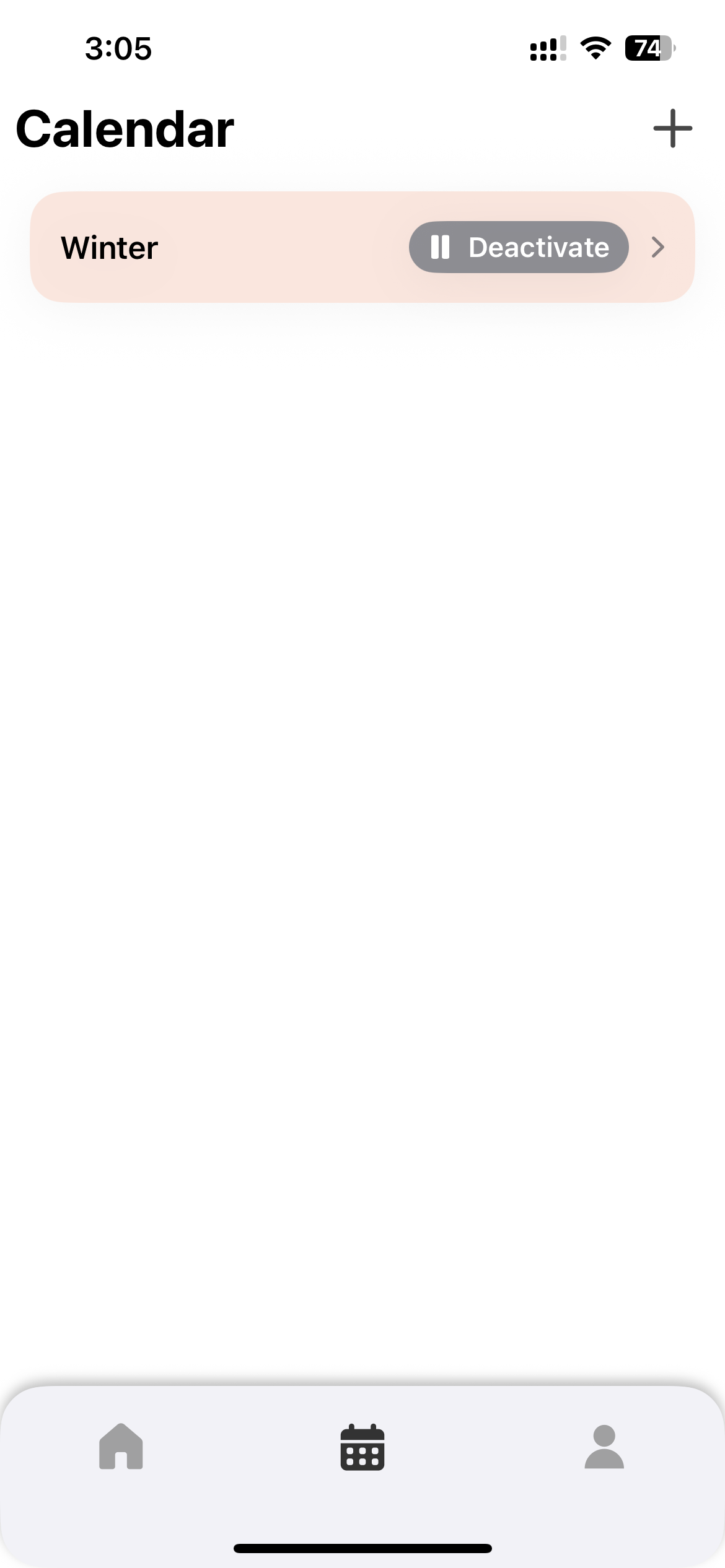
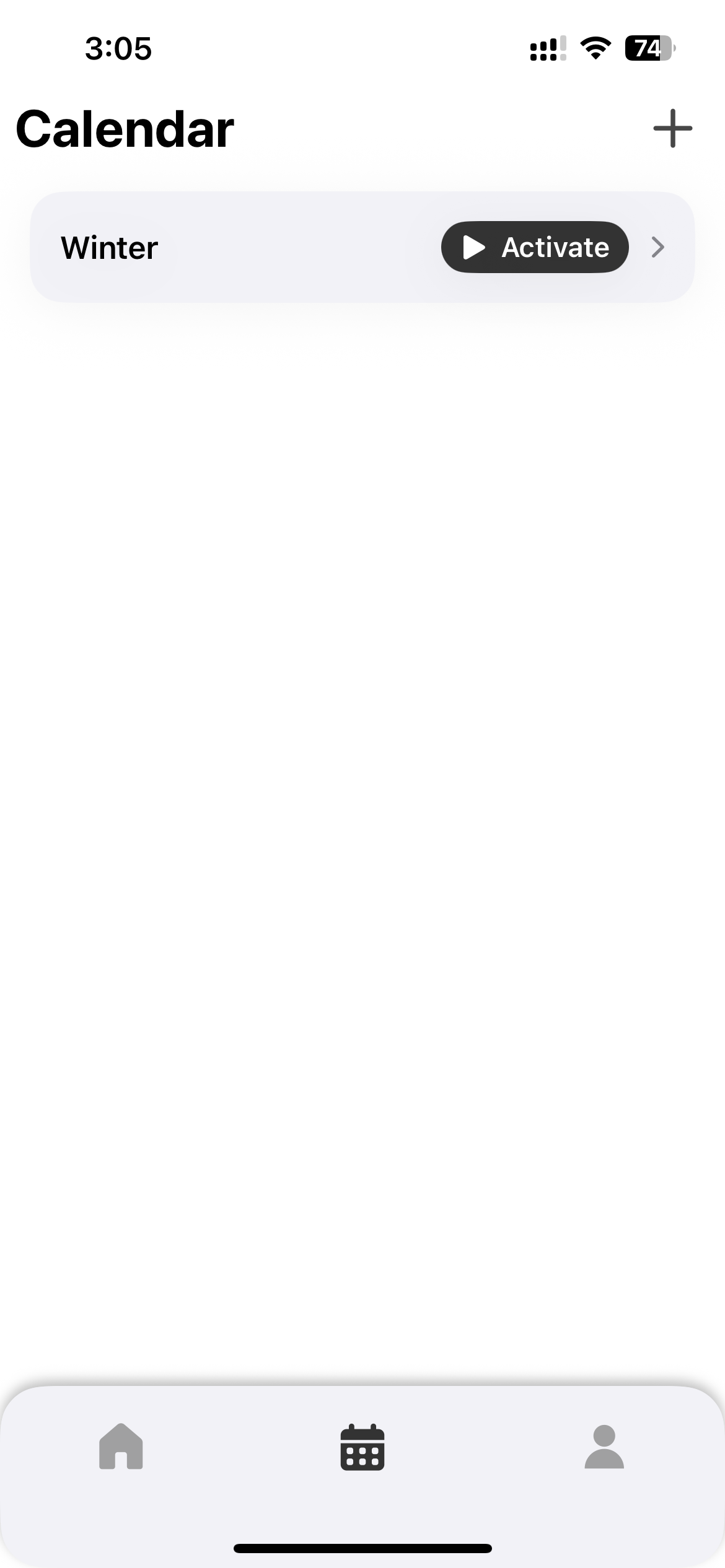
Only one calendar can be active at a time. Activating a new calendar automatically deactivates the previous one.
Configure the Weekly Schedule
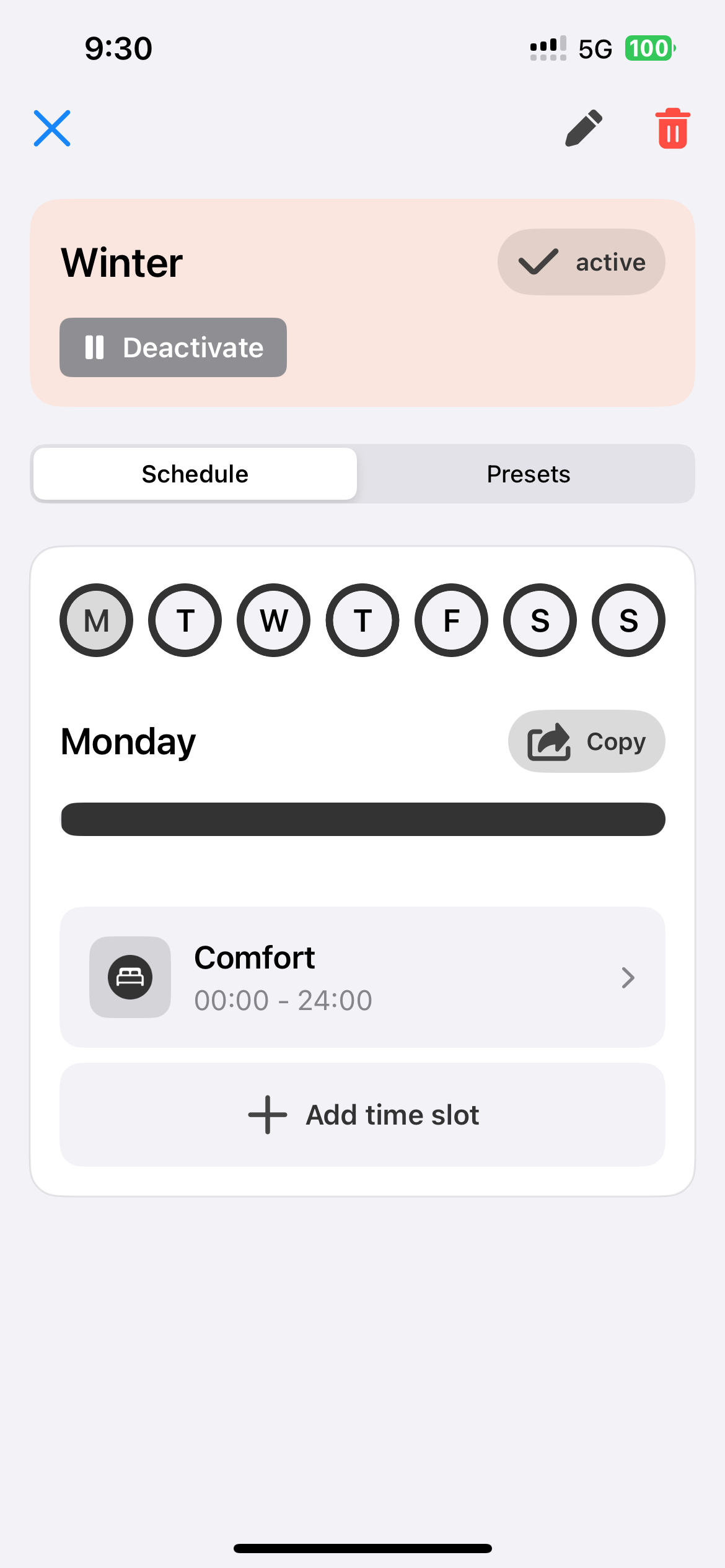
Tap on a calendar to view its weekly schedule. Select a day of the week to configure its time slots.
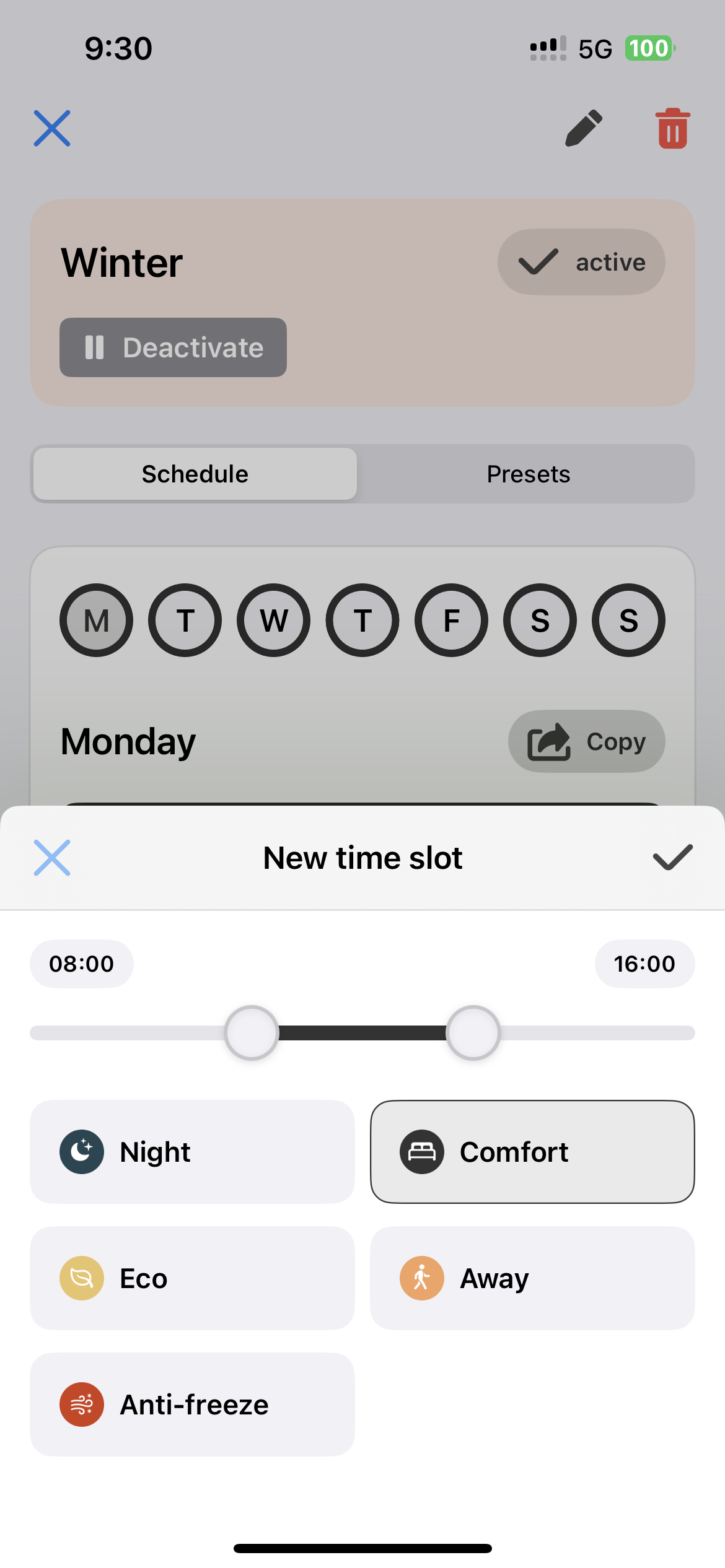
Add Time Slots
- Tap + Add time slot on a selected day.
- Choose a preset and set the start and end times.
- Save the time slot.
Copy Time Slots to Other Days
Use the Copy function to replicate a day’s schedule to other days of the week.
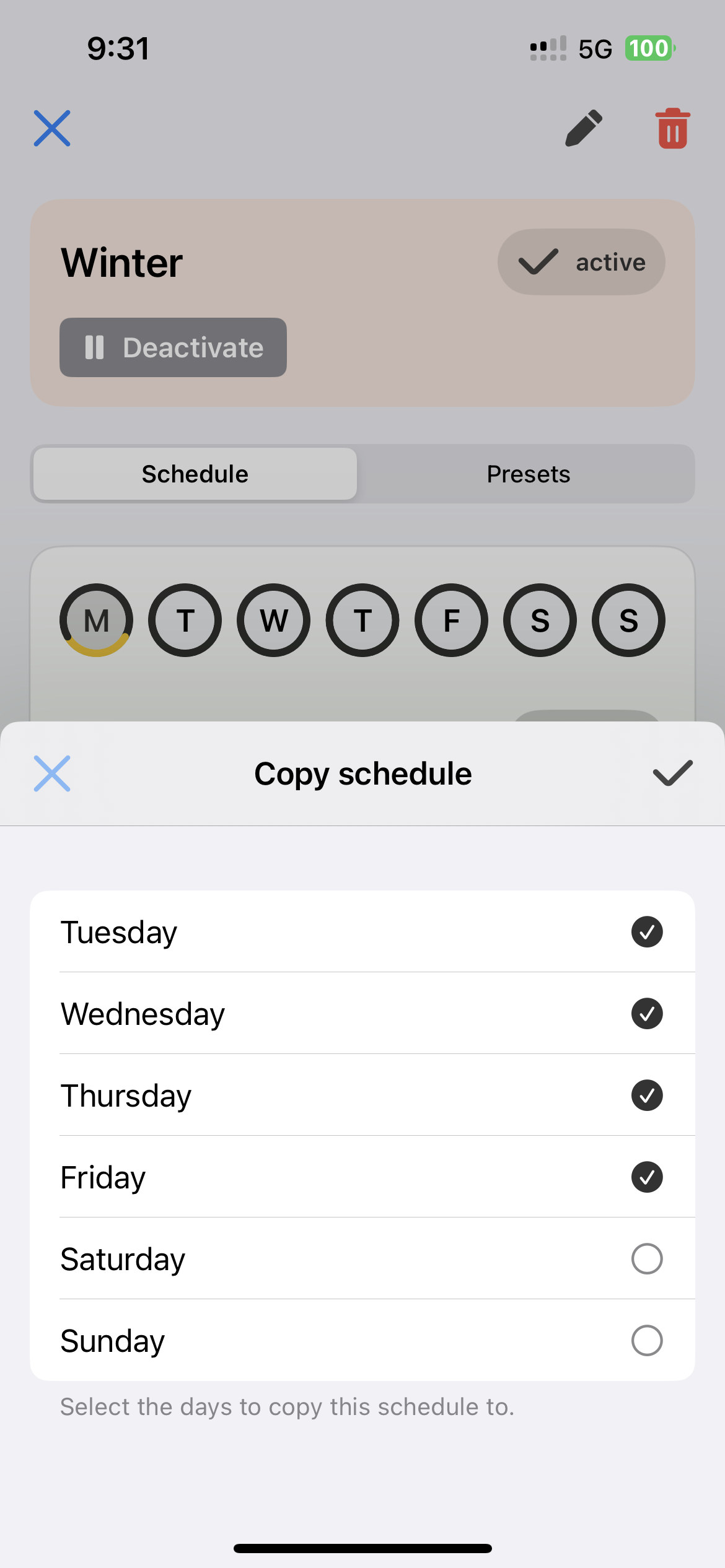
Configure one day completely, then copy it to the rest of the week to set up your schedule quickly.